If you’ve ever tackled the intricate dance of managing references for a research paper, you know firsthand the chaos that can ensue. From adhering to a specific citation style to juggling multiple sources, the stakes get even higher when collaboration enters the picture—especially in settings like an online MBA program where diverse teams converge.
So, what do we need to streamline this process? A robust toolset that:
- Simplifies saving references from various sources, including online journals and libraries.
- Indexes these references for rapid searching, which is invaluable when collaborating with team members and inheriting their citations.
- Facilitates effortless sharing of references among all team members.
- Integrates seamlessly with Word, allowing for automatic citation updates and the compilation of reference lists.
Our goal here is clear: transform a painstaking task into a near-automatic process. While there are several contenders in this space, I find myself consistently drawn to Zotero for its user-friendly interface and powerful features.
Getting Started with Zotero
To embark on this journey, you’ll need to complete a couple of straightforward steps:
- Download and install Zotero, which conveniently includes the Word add-in.
- Install the browser plugin to capture references effortlessly during your research.
Saving References
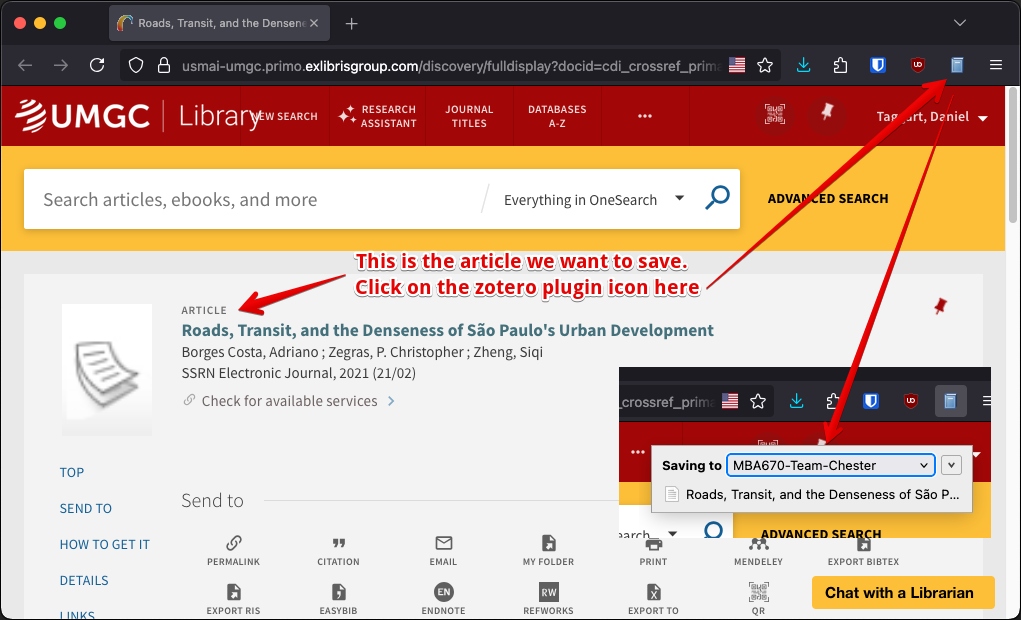
- Navigate to the library reference page or any source you need—Zotero is versatile enough to handle a wide array of materials.
- Click the Zotero Add-in icon. This action automatically saves the reference to your most recently used Zotero folder.
- No step 3 needed—it’s that simple!
Organizing References
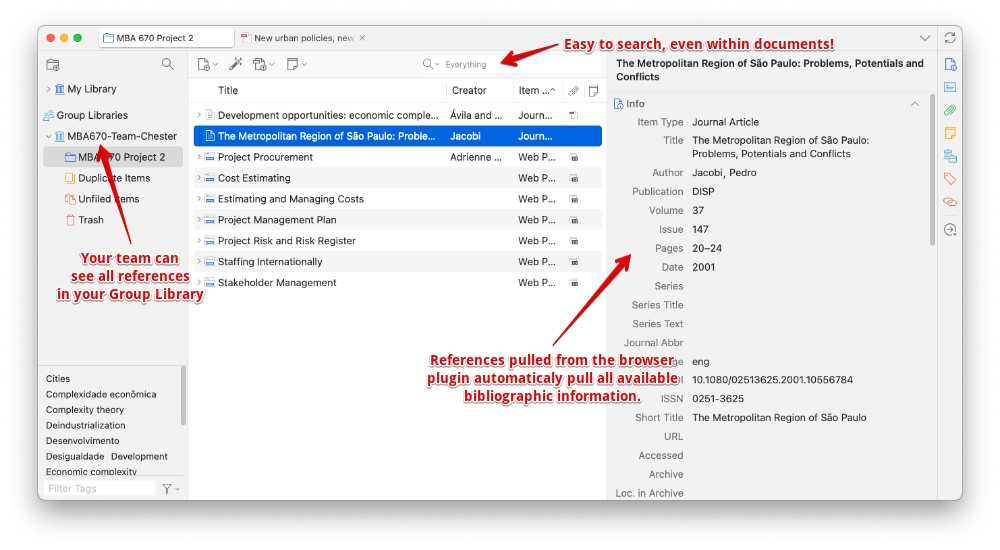
While managing references is mostly automated, here are a few standout features worth highlighting:
- Saving a reference from your browser often captures the original journal or article text as a searchable PDF. This functionality not only simplifies your research but also makes it easy to explore references from your collaborators.
- The “Group Library” feature ensures that everything is automatically visible to all group members with access, fostering a truly collaborative environment.
Inserting References
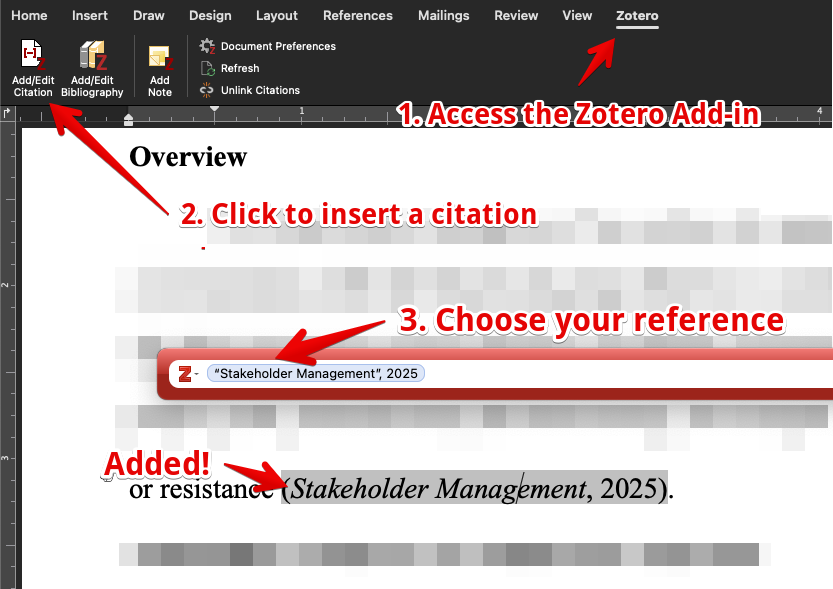
- Click on “Zotero” in your menu to reveal the Zotero ribbon.
- Position your cursor where you’d like to insert a citation.
- Select “Add/Edit Citation.”
- Choose your reference—typically, this will be the last one you added to Zotero.
- Voilà! The citation is automatically formatted, and the corresponding reference is added to your paper’s reference section.
For a deeper dive into Zotero’s capabilities, I recommend exploring the detailed guides from NYU and U.C. Berkeley. Embrace the power of Zotero, and elevate your collaborative research efforts with ease and efficiency.