Let’s be honest: if you’re just dipping your toes into academic writing or have somehow evaded the chaos of collaborating on a 40-page policy white paper with six other passionate (and possibly opinionated) colleagues, you may not yet be acquainted with the often daunting—but ultimately indispensable—function known as Track Changes in Microsoft Word. Fear not! It’s not a glitch, a curse, or an alien artifact. Rather, it’s your most reliable ally in disguise (think of it as that friend who shows up in sweatpants just when you need help moving a couch).
Why Is Track Changes Essential?
Picture this: you’re working on a group paper, proposal, or grant application alongside a few colleagues. You send your document off for feedback, and it returns looking like this:
- One collaborator has rewritten your introduction without a word of warning.
- Another has deleted your carefully constructed paragraph because, well, “it felt off.”
- A third has added an entire section in Comic Sans, unprompted. (Truly unforgivable.)
Now, imagine that all these edits are indistinguishable from your original text—no highlights, no comments, and no way to know what’s changed. You find yourself spending hours playing “spot the difference” with your own work, only to give up and weep into a coffee-stained printout.
Enter: Track Changes
This remarkable feature makes every edit—be it additions, deletions, or formatting tweaks—visible. Think of it as a forensic lens for your manuscript. Not only can you see what’s been altered, but you also know who made the change and when.
But Track Changes Ruins My Document! WHAT
Ah, the classic moment of dread: you open a file, and it’s suddenly awash in red lines, strikethroughs, and margin comments as though it just survived a literary massacre. It’s overwhelming. It’s unsightly. It feels broken.
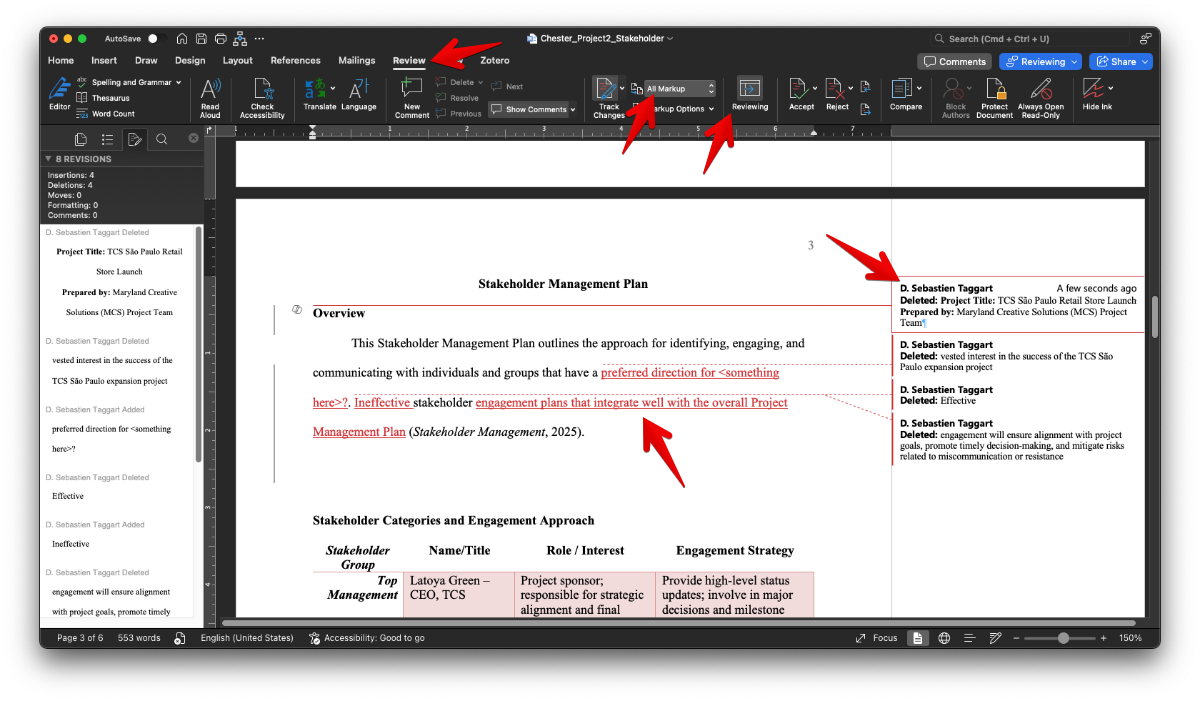
Here’s the trick: change the view, not the content.
Navigate to the “Review” tab, locate the dropdown labeled something like “All Markup,” and switch it to “Simple Markup” or “No Markup”. Voilà! You’re still tracking changes, but the chaos is hidden unless you choose to reveal it.
You can write and edit like a normal human, while the computer quietly documents your moves in the background. Much like a helpful ghost—or, if you prefer, a less-creepy version of Clippy.
Why Shouldn’t I Just Turn Track Changes Off?
Because you’re a thoughtful collaborator who doesn’t want to subject your teammates to the torturous experience of document archaeology.
Here’s what happens when everyone tracks their changes:
- Transparency in authorship. No more of the “Did you delete the entire methods section, or was that me?” confusion.
- Efficient division of labor. Alice tackles section 1, Bob rewrites section 2, you polish the conclusion—all of this can happen simultaneously without stepping on each other’s toes.
- Empowered editing. You can accept or reject edits like a benevolent editor-god. Keep what works, discard what doesn’t, and minimize the drama.
When Track Changes is turned off, your edits blend seamlessly into the original text. At that point, you might as well throw your carefully crafted feedback into a bonfire and hope someone recalls it.
Yes, It’s a Few Extra Clicks—But It Saves Your Sanity
Admittedly, there’s a learning curve. You’ll forget to turn it on. You might panic when your document resembles a manuscript marked by an overzealous English teacher. But once you get the hang of it?
You save hours.
You stop emailing files back and forth like it’s 2007.
You avoid the chaos of six people editing the same sentence and waging document wars.
Track Changes is the best worst-looking tool you’ll ever use—and once you master it, you’ll wonder how you ever managed without it.