Hugo is a powerful static site generator that stands out for its speed and simplicity. If you’re looking to create a website quickly and efficiently, you’ve landed in the right place.
Quickstart
Let’s get you up and running:
Clone the Repository
Start by cloning the repository:git clone <this repository>Initialize Submodules
Update your local copy of the academic theme:git submodule init git submodule update --recursive --remoteInstall Hugo
If you’re using Homebrew, a simple installation command will suffice:brew install hugo
Running Your Site Locally
To see your work in action, launch the site locally:
hugo serve
You can view it at http://localhost:1313/. To stop the server, simply press Ctrl + C.
If you encounter caching issues, consider using the following command:
hugo serve --disableFastRender --disableLiveReload --gc
When you’re ready to deploy, push your changes to the master branch to trigger a build.
Creating Content
Creating new posts is straightforward. Use this command:
hugo new post/<long-name-of-post>/
For instance, to create a post about terminal configuration on macOS, you could run:
hugo new post/configuring-the-perfect-terminal-experience-in-osx/
This will generate an _index.md file within the “posts” directory, complete with a preconfigured structure ready for your content.
Upgrading Hugo
To keep your Hugo installation current, simply run:
brew upgrade hugo
If you installed via a different method, check the Hugo documentation for guidance. For upgrading the Academic theme itself, follow the same principles.
For a comprehensive list of content management tips and available fields, refer to this documentation.
Understanding Categories and Tags
You might be wondering about the difference between Categories and Tags. While they are functionally similar—both serve as Hugo taxonomies—there are some distinctions worth noting:
Tags: These act as “Topics” in the word cloud on the homepage and are displayed as links at the bottom of individual posts. For example, clicking on a tag like
/tags/bash/will lead to a listing page of related posts.Categories: Think of categories as broader groupings. They allow users to filter posts and are clickable links displayed on posts, including on previews on your homepage.
Here’s how you can structure them in your front matter for clarity:
---
categories: ['OSX']
tags: ['OSX Tweaking', 'TEST']
---
The Academic Theme
If you’re using the Academic theme, you can find more details here: Academic Theme Homepage and GitHub Repository.
Handling Images
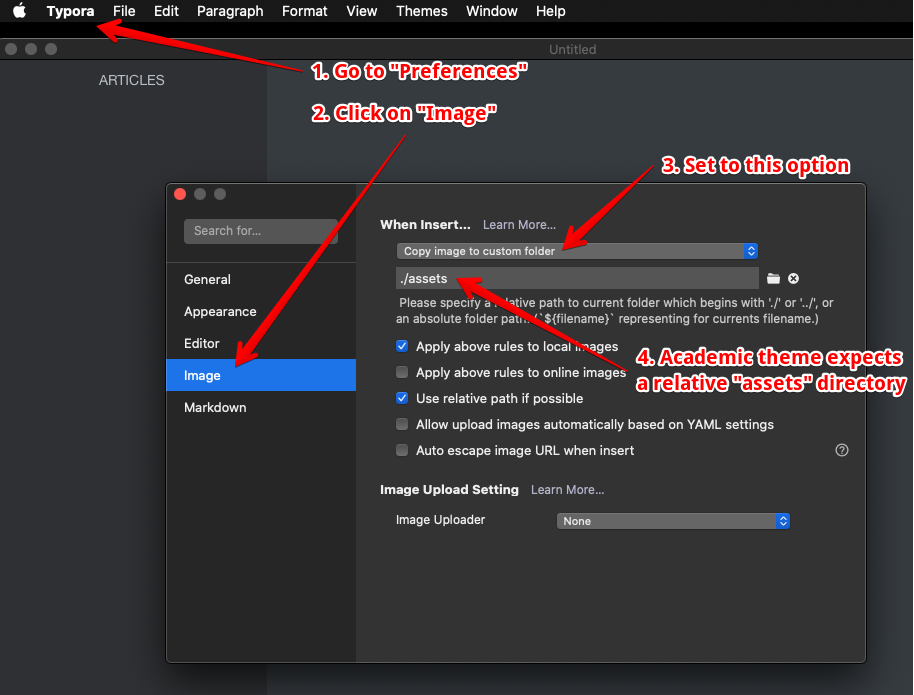
When working with images in the Academic theme, follow this structure:
- Place your images in the
./assetsdirectory. - Use relative links in your markdown, like this:

Many markdown editors, such as Typora and Atom, can be configured to follow this setup automatically.
Typora Example
Atom Example
As you embark on your Hugo journey, remember that experimentation is key. Embrace the learning process, and don’t hesitate to explore the rich ecosystem that Hugo offers. Happy building!